Student Guide
Welcome! 4SCH gives you easy access to everything you need for school—your timetable, assignments, grades, and more. This guide will show you how to use it.
Accessing 4SCH as a Student
You can now access 4SCH in two ways:
Web Portal (New!): https://ngs.4sch.com
- Access from any computer or laptop browser
- Full-featured experience with enhanced capabilities
- Perfect for working on assignments, detailed study, and exploring materials
- Works on tablets and mobile browsers too
Mobile App: Available on Android and iOS
- Quick access on the go
- Push notifications for new assignments and announcements
- Convenient for checking schedules and grades
- Download from Google Play Store or Apple App Store
Use the web portal when you need to work on assignments, download study materials, or prefer a larger screen.
Use the mobile app for quick checks during the day and to receive instant notifications.
Both platforms sync automatically—submit an assignment on the web, and your teacher sees it immediately. Check grades on your phone, and they're the same on the web.
How to Log In
Web Portal:
- Go to https://ngs.4sch.com in your browser
- Enter your School Code (provided by your school)
- Enter your GR Number (General Roll Number - your student registration number)
- Enter your Password (provided by your school)
- Click Sign In
Mobile App:
- Download the 4SCH Student App from your app store
- Open the app
- Enter your School Code
- Enter your GR Number
- Enter your Password
- Tap Sign In
Your school will provide three credentials:
- School Code - Unique identifier for your school
- GR Number - Your General Roll Number (student registration number)
- Password - Your initial password (you should change this after first login for security)
Keep these details safe as you'll need them to log in and reset your password if needed.
Forgot Your Password?
New! You can now reset your password yourself without contacting the school admin - available on both mobile app and web portal!
On the Mobile App:
- Tap "Forgot Password?" on the login screen
- You'll need to provide:
- School Code (provided by your school)
- GR Number (General Roll Number - your student registration number)
- Date of Birth (in dd-mm-yyyy format, e.g., 15-08-2010)
- Tap Submit
- Follow the instructions to create your new password
- Log in with your new password
On the Web Portal (ngs.4sch.com):
- Click "Forgot Password?" on the login page
- You'll need to provide:
- School Code (provided by your school)
- GR Number (General Roll Number - your student registration number)
- Date of Birth (in dd-mm-yyyy format, e.g., 15-08-2010)
- Click Submit
- Follow the instructions to create your new password
- Log in with your new password
Make sure you know your:
- School Code (provided by your school - same code used for login)
- GR Number (your General Roll Number - shown on your student ID card and used for login)
- Date of Birth (in the correct format: dd-mm-yyyy)
You'll need all three details to reset your password anytime. These are the same credentials your school provided for login.
- Choose a strong password (mix of letters, numbers, and symbols)
- Don't share your password with friends or classmates
- Change your password regularly for security
- If you can't reset your password using the self-service option, contact your school admin
Your Student Dashboard
When you log into 4SCH (via web portal or mobile app), you'll see your Student Dashboard. This is your home page for everything school-related.
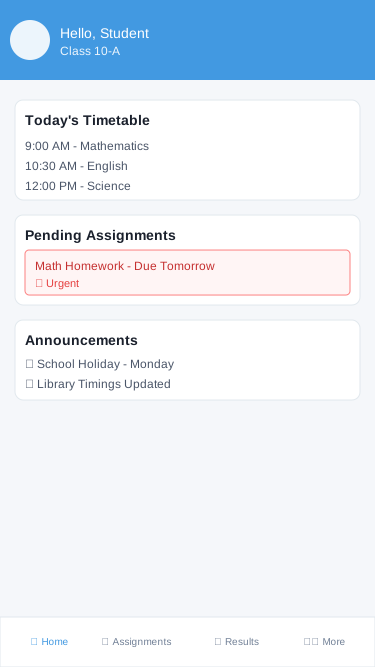
What's on Your Dashboard
Today's Schedule:
- Your classes for today with times
- Teachers for each subject
- Room numbers (if available)
Upcoming Deadlines:
- Assignments due this week
- Upcoming tests and exams
- Projects and submissions
Recent Updates:
- New grades posted
- Messages from teachers
- School announcements
Quick Stats:
- Your attendance percentage
- Latest grade average
- Pending assignments
Check your dashboard every morning before school to see:
- What classes you have today
- Any homework due today
- New messages or announcements
Viewing Your Timetable
Your timetable shows all your classes for the week.
For information about viewing exam timetables and results:
- Online Exams (Students) - Digital exam schedules and instant results
- Offline Exams (Students) - Traditional exam timetables and results
How to Check Your Timetable
- Go to Timetable from the main menu
- You'll see your weekly schedule
- Each box shows:
- Subject name (e.g., Mathematics, English)
- Teacher's name
- Time (e.g., 9:00 AM - 10:00 AM)
- Room/venue (if applicable)
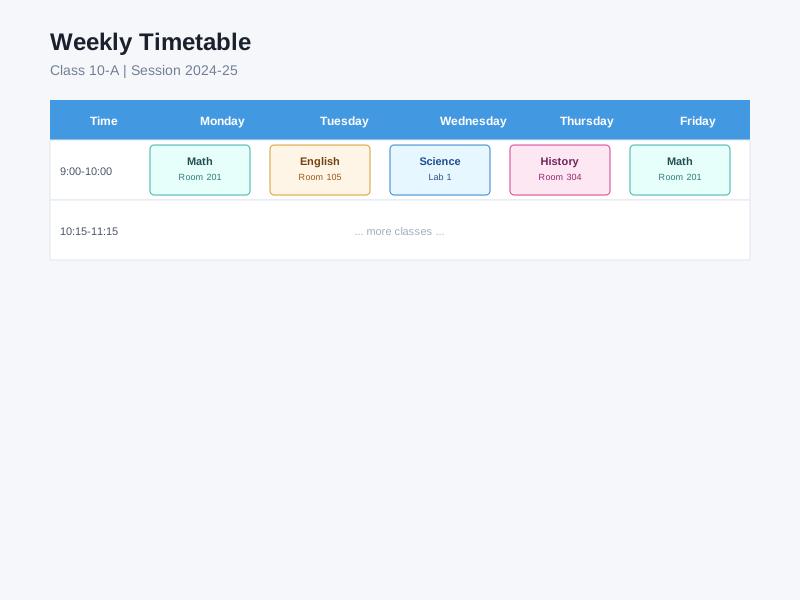
Understanding Your Timetable
Different views:
- Week View — See the whole week at once
- Day View — Focus on just today's classes
- List View — See classes as a simple list
Color coding:
- Each subject usually has a different color
- This makes it easy to spot classes quickly
Exam Timetable
When exams are coming:
- Go to Timetable → Exams
- You'll see:
- Exam date and time
- Subject being tested
- Duration (e.g., 2 hours)
- Venue/room
Download your exam timetable so you can study the right subjects at the right time.
Print your exam timetable and stick it on your wall at home. This helps you plan your study time properly.
Create a Study Schedule:
- Work backward from exam dates
- Allocate more time to difficult subjects
- Include breaks (30 min study, 10 min break)
- Study hardest subjects when you're most alert (morning for most students)
Use 4SCH Study Materials:
- Download PDFs and videos your teachers upload
- Watch video lessons multiple times if needed
- Make notes from study materials
- Practice with any worksheets provided
Don't:
- ❌ Cram everything the night before
- ❌ Skip sleep to study (you need rest for your brain to work!)
- ❌ Study only from your notes without practicing questions
- ❌ Ignore subjects you find difficult
- ❌ Forget to eat properly during exam period
Do:
- ✅ Start preparing at least 2 weeks before exams
- ✅ Practice past questions
- ✅ Study with friends (explain concepts to each other)
- ✅ Take regular breaks
- ✅ Stay healthy - exercise, eat well, sleep 7-8 hours
Assignments & Homework
Your teachers will post assignments for you to complete and submit online.
Viewing Your Assignments
From Your Dashboard:
- See assignments due soon
- Click on any assignment to view details
From Assignments Page:
- Go to Assignments from the main menu
- You'll see all your assignments organized by:
- Pending — Not yet submitted
- Submitted — You’ve submitted and it’s waiting for teacher review
- Accepted / Graded — Teacher accepted it (may include points + feedback)
- Rejected — Teacher rejected it (you may be allowed to resubmit)
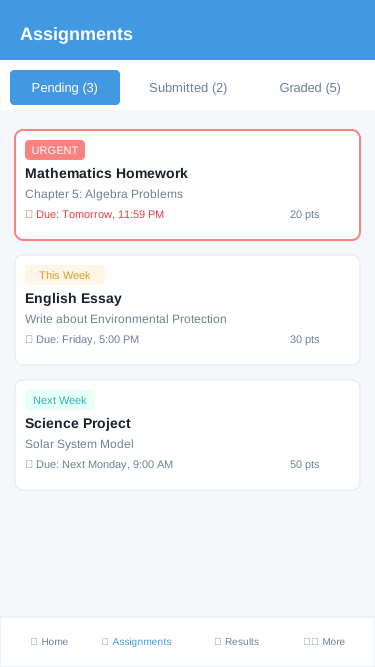
Understanding an Assignment
When you click on an assignment, you'll see:
Assignment Details:
- Title — What it's called (e.g., "Chapter 5 Math Problems")
- Subject — Which class it's for
- Teacher — Who assigned it
- Instructions — What you need to do
- Due Date — When to submit by
- Total Points — How many marks it's worth
Attached Files:
- WorNGNeets to download
- Reference materials
- Rubrics (grading criteria)
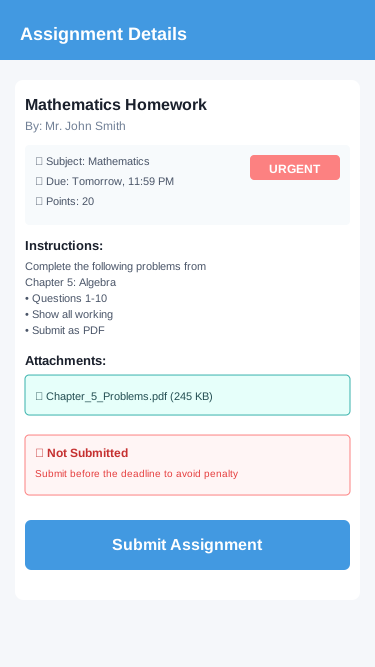
Complete Workflow: Completing and Submitting an Assignment
This step-by-step workflow shows you exactly how to complete an assignment from start to finish, ensuring you get the best grade possible.
Phase 1: When You Receive the Assignment (Day 1)
How you'll know there's a new assignment:
You'll receive a notification:
- 📱 Push notification: "New assignment: Chapter 5 Math Problems - Due March 25"
- 📧 Email notification to your parent (they'll remind you!)
- 🔔 In-app notification badge
Step 1: Check the assignment immediately (2 minutes)
Even if you're not ready to start, review it right away!
- Open 4SCH app or log in to website
- Go to Assignments → Pending
- Click on the new assignment
Step 2: Read ALL the instructions carefully
Don't just skim! Read everything:
Assignment: Chapter 5: Quadratic Equations Practice
Subject: Mathematics
Teacher: Mrs. Adeyemi
Due Date: March 25, 2026 at 11:59 PM
Total Points: 20 points

Instructions:
Solve all 4 quadratic equations using the quadratic formula.
Show all your working. Answers without working will receive
half marks only.

Submit your solutions as:
- Handwritten work (scan or photo - must be clear)
- Typed document (Word or PDF)

Formula: x = [-b ± √(b²-4ac)] / 2a
Step 3: Download any attached files
Teachers often attach:
- ✓ WorNGNeet with questions
- ✓ Worked examples
- ✓ Rubric (how you'll be graded)
- ✓ Reference materials
Action: Click "Download All" and save to a folder on your device.
Step 4: Plan your time (1 minute)
Calculate how much time you have:
- Assignment posted: March 18 (Monday)
- Due date: March 25 (Monday) = 7 days
- Don't wait until the last day!
Smart planning:
- Start: March 19 (Tuesday after school)
- Finish: March 23 (Saturday)
- Review & Submit: March 24 (Sunday)
- Buffer day: March 25 (in case of problems)
Add to your calendar or planner:
- "Start Math Assignment - Tuesday 3pm"
- "Finish Math Assignment - Saturday"
- "Submit Math Assignment - Sunday by 8pm"
Never submit on the due date! Always aim to submit 1-2 days early. This gives you time if:
- Your internet goes down
- File won't upload
- You realize you made mistakes
- You have questions for the teacher
Phase 2: Doing the Work (Days 2-5)
Creating the right environment:
-
Find a quiet place:
- No TV or loud music
- Good lighting
- All materials ready (calculator, pen, paper, textbook)
-
Eliminate distractions:
- Put phone on silent (except for timer)
- Close social media tabs
- Tell family you're studying
-
Set up your workspace:
- Have the downloaded worNGNeet printed or on another device
- Keep 4SCH open to check instructions
- Have scrap paper for rough work
Working through the assignment:
For our Math example:
Question 1: 2x² + 5x - 3 = 0
-
Identify values:
- a = 2
- b = 5
- c = -3
-
Write the formula:
- x = [-b ± √(b²-4ac)] / 2a
-
Show your working:
x = [-5 ± √(5²-4(2)(-3))] / 2(2)
x = [-5 ± √(25+24)] / 4
x = [-5 ± √49] / 4
x = [-5 ± 7] / 4

x₁ = (-5+7)/4 = 2/4 = 0.5
x₂ = (-5-7)/4 = -12/4 = -3

Answer: x = 0.5 or x = -3 -
Check your answer:
- Substitute x = 0.5 into original equation
- 2(0.5)² + 5(0.5) - 3 = 0.5 + 2.5 - 3 = 0 ✓
- Correct!
Repeat for Questions 2, 3, and 4
Quality checklist for each question:
- Read question carefully
- Show ALL working (don't skip steps!)
- Circle or highlight final answer
- Check answer by substituting back
- Write neatly (if handwritten)
Phase 3: Preparing Your Submission (Day 6)
Option A: Handwritten work
If you did the work on paper:
Step 1: Review your work
- Did you answer all 4 questions?
- Is your working visible and clear?
- Are final answers clearly marked?
Step 2: Scan or photograph
Best practices for photos:
- ✓ Use good lighting (natural light is best)
- ✓ Place paper flat on a surface
- ✓ Take photo from directly above (not at an angle)
- ✓ Make sure ALL work is visible
- ✓ Check photo is clear and readable
Bad photo example:
- ❌ Blurry text
- ❌ Shadow covering some work
- ❌ Cropped so question 4 is cut off
- ❌ Too dark to read
Good photo example:
- ✓ All 4 pages clearly visible
- ✓ Sharp text that's easy to read
- ✓ Proper lighting
- ✓ Nothing cut off
Step 3: Combine into one PDF (recommended)
Use a free app like:
- CamScanner
- Adobe Scan
- Microsoft Lens
- iPhone Notes app
This creates: ChineduOjo_Math_Chapter5.pdf (one file with all 4 questions)
Option B: Typed work
If you typed your solutions:
Step 1: Format properly
- Use proper mathematical symbols (±, ², √)
- Number each question clearly
- Include the question before your answer
- Use consistent formatting
Step 2: Include diagrams if needed
- Insert images or hand-draw and scan
- Make sure they're clear
Step 3: Save as PDF
- File → Save As → PDF
- Name: ChineduOjo_Math_Chapter5.pdf
Why PDF and not Word?
- ✓ Looks the same on all devices
- ✓ Can't be accidentally edited
- ✓ Usually smaller file size
- ✓ More professional
Phase 4: Submitting Your Work (Day 7 - Submit Day!)
Timeline for submission day:
Saturday Evening (1 day early):
8:00 PM - Final review (10 minutes)
- Open your PDF: ChineduOjo_Math_Chapter5.pdf
- Check EVERY page:
- Page 1: Question 1 ✓
- Page 2: Question 2 ✓
- Page 3: Question 3 ✓
- Page 4: Question 4 ✓
- All pages clear and readable? ✓
- File size reasonable? (Under 10 MB) ✓
8:10 PM - Upload to 4SCH (3 minutes)
- Open 4SCH app or website
- Go to Assignments → Pending
- Click on "Chapter 5: Quadratic Equations"
- Click Submit Assignment button
8:11 PM - File selection
- Click "Choose File" or "Upload"
- Navigate to your Downloads or Documents
- Select: ChineduOjo_Math_Chapter5.pdf
- Click "Open"
8:12 PM - Preview before submitting
CRITICAL: Review the upload preview!
You'll see a preview of what your teacher will see:
- ✓ File name correct?
- ✓ All 4 pages showing in preview?
- ✓ Pages in the right order?
- ✓ Text is readable in the preview?
If preview looks wrong:
- Click "Cancel"
- Check your PDF file
- Re-upload
If preview looks good:
- Proceed to next step
8:13 PM - Add optional message to teacher
Good messages:
"All 4 questions completed with full working shown.
Please let me know if you have any questions."
"I found Question 3 challenging but I showed my attempt.
Could you please provide feedback on my approach?"
Don't write:
- ❌ "Here" (too brief)
- ❌ "Done" (unprofessional)
- ❌ Nothing (missed opportunity to communicate)
8:14 PM - Final submission
- Click Submit Assignment
- Confirmation dialog: "Are you sure you want to submit?"
- Click Yes, Submit
8:15 PM - Confirmation!
Success screen shows:
✓ Assignment Submitted Successfully!

Assignment: Chapter 5: Quadratic Equations
Submitted: March 24, 2026 at 8:15 PM
Status: Submitted (On Time)
File: ChineduOjo_Math_Chapter5.pdf (2.3 MB)

Your teacher has been notified.
You will receive a notification when it's graded.
Important actions after submitting:
-
Take a screenshot
- Proof you submitted on time
- Shows submission time and file name
-
Check your email
- You should receive confirmation email
- Save this email
-
Verify in 4SCH
- Go to Assignments → Submitted
- Your assignment should be there
- Status: "Submitted ✓"
-
Keep your original file
- Don't delete ChineduOjo_Math_Chapter5.pdf
- Keep until you get your grade back
- In case teacher says they didn't receive it
8:30 PM - Celebrate!
- You submitted 1 day early! ✓
- Time to relax - you earned it!
Phase 5: What Happens Next? (Waiting for Grade)
Day after submission:
Check 4SCH to confirm:
- Assignment shows as "Submitted"
- Submission date is correct
- File is attached
During grading period (3-7 days typically):
You'll receive a notification when graded:
- 📱 "Your Math assignment has been graded: 18/20"
View your grade:
- Go to Assignments → Graded
- Click on the assignment
- See:
- Your score: 18/20 (90%)
- Teacher's comments:
Excellent work, Chinedu! You showed clear working for all questions.

Q1: Perfect! (5/5)
Q2: Perfect! (5/5)
Q3: Good attempt but small error in arithmetic.
    You wrote √49 = 8 instead of 7. (4/5)
Q4: Perfect! (4/4)

Overall: Great job! Review your basic square roots
to avoid simple errors like in Q3.

Keep up the good work!
Learning from feedback:
- ✓ Read ALL teacher comments
- ✓ Understand where you lost marks
- ✓ Learn from mistakes
- ✓ Apply lessons to next assignment
If you disagree with grade:
- Don't panic or get angry
- Review the rubric
- Check if you actually did what was asked
- If you still think it's wrong, message teacher politely:
"Dear Mrs. Adeyemi,

Thank you for grading my assignment. I wanted to respectfully
ask about Question 3. I believe √49 = 7, and I have that in
my work. Could you please review?

Thank you.
Chukwudi"
Common Problems & Solutions
Problem 1: "I forgot the deadline!"
It's 11:30 PM on due date, assignment due at 11:59 PM:
- Don't panic!
- Submit immediately - even if not perfect
- Better to submit something than nothing
- Partial credit > zero credit
If past deadline:
- Submit anyway (some teachers accept late work with penalty)
- Message teacher immediately:
"Dear Mrs. Adeyemi, I apologize for submitting late.
[Brief reason - sick, emergency, etc.]
I've now submitted my work. Please let me know if
you can still accept it.
Thank you for your understanding."
Problem 2: "File won't upload"
Error: "File too large"
- Compress your PDF using online tools
- Or split into multiple smaller files
- Or take new photos at lower resolution
Error: "File type not supported"
- Check assignment requirements
- Convert to PDF (most universally accepted)
- Don't submit .pages or .numbers files (Mac-specific)
Error: "Upload failed - network error"
- Check internet connection
- Try again in 5 minutes
- Try different network (WiFi vs mobile data)
- Use different device if available
- Screenshot the error and message teacher
Problem 3: "I submitted the wrong file!"
Realized immediately after submitting:
- Some systems allow you to "undo" or "withdraw" submission
- Look for "Withdraw Submission" or "Resubmit" button
- If available, withdraw and resubmit correct file
If can't withdraw:
- Message teacher immediately:
"Dear Mrs. Adeyemi, I accidentally submitted the wrong file.
The correct file is attached to this message.
I'm sorry for the confusion.
[Attach correct file]
Thank you."
Problem 4: "I don't understand the assignment"
Ask for help EARLY (not the night before!):
Day 1-2 after receiving assignment:
- Message your teacher:
"Dear Mrs. Adeyemi, I have a question about the assignment.
I don't understand what you mean by 'show all working.'
Does this mean I should write every step, even simple ones?
Thank you."
Or ask in class:
- "Could you please explain Question 3? I'm not sure what's being asked."
Don't wait until the last day!
Time Management Summary
For a 7-day assignment:
| Day | Task | Time Needed |
|---|---|---|
| Day 1 | Read assignment, download files, plan | 15 minutes |
| Day 2 | Start work - complete Questions 1-2 | 45 minutes |
| Day 3 | Continue work - complete Questions 3-4 | 45 minutes |
| Day 4 | Review all work, check answers | 30 minutes |
| Day 5 | Prepare submission (scan/type) | 20 minutes |
| Day 6 | Final review, upload & submit | 15 minutes |
| Day 7 | Buffer day (in case of problems) | - |
Total actual work time: ~3 hours Spread over 6 days: ~30 minutes per day
Much better than: Rushing for 3 hours the night before!
Success Checklist
Before starting:
- Read ALL instructions carefully
- Downloaded all attached files
- Understand what's being asked
- Planned when you'll do the work
- Have all materials needed
While working:
- Following instructions exactly
- Showing all working (if required)
- Checking answers as you go
- Writing/typing neatly
- Taking breaks to stay focused
Before submitting:
- Answered ALL questions
- Reviewed all work for errors
- File properly named
- File is clear and readable
- File size is acceptable
- Submitting 1-2 days early
After submitting:
- Took screenshot of confirmation
- Received confirmation email
- Verified submission in 4SCH
- Kept original file safe
- Waiting patiently for grade
Quick Submission Guide (For Reference)
If you just need the basic steps:
Step 1: Do the Work Complete the assignment according to the instructions.
Step 2: Prepare Your Submission
If it's a file upload:
- Save your work as a PDF, Word document, or image
- Name it properly: "YourName_Subject_Assignment.pdf"
- Example: "ChineduOjo_Math_Chapter5.pdf"
If it's a text entry:
- Type your answer directly into the submission box
Step 3: Submit
- Click Submit Assignment
- Choose your file (if file upload) or type your answer
- Review what you're submitting
- Click Submit to send it to your teacher
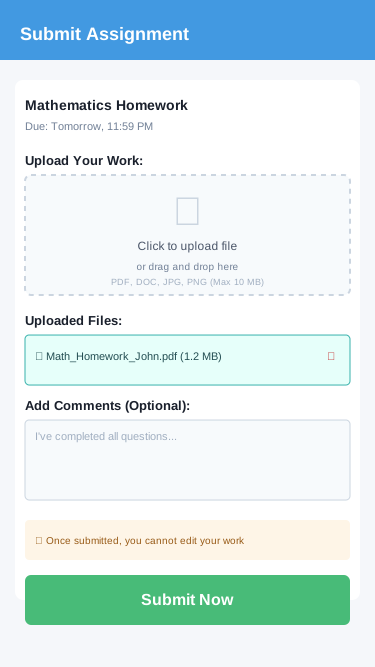
Step 4: Confirmation You'll see a confirmation that your assignment was submitted successfully.
Once you submit, you usually can't edit it! Make sure you've:
- ✅ Completed all questions
- ✅ Checked your spelling and grammar
- ✅ Attached the right file
- ✅ Submitted before the deadline
Checking Your Assignment Grade
After your teacher grades your work:
- Go to Assignments
- Look for assignments marked Graded
- Click on the assignment
- You'll see:
- Your score (e.g., 15/20)
- Your percentage (e.g., 75%)
- Teacher's feedback/comments
Read the feedback carefully! Your teacher's comments help you improve next time.
Resubmission and Late Submission
Late submission:
- 4SCH can still allow you to submit after the due date depending on your school/teacher settings.
- If you will be late, message your teacher before the deadline.
Resubmission (after rejection): If your teacher rejects your submission, you may be allowed to resubmit only if the teacher enabled resubmission for that assignment.
In the backend, students can only delete an assignment submission while it is still in the initial Submitted (pending review) state. Once it is accepted or rejected, deletion is blocked.
Don't wait until the last minute! Submit assignments at least a day before the deadline. This gives you a buffer if something goes wrong (internet issues, computer problems, etc.).
Smart Assignment Strategy:
- Same Day: Read the assignment as soon as it's posted
- Day 1-2: Gather materials, do research, start rough draft
- Day 3-4: Complete the work
- Day 5: Review, edit, and submit
- Never: Submit on the due date morning (too risky!)
What If You're Stuck:
- Reread the instructions carefully
- Check study materials teacher provided
- Ask a classmate who might understand
- Message your teacher through 4SCH (don't be afraid to ask!)
- Ask your parents for help
Managing Multiple Assignments:
- Create a checklist of all assignments
- Do the hardest one first when you have energy
- Break large projects into smaller tasks
- Set mini-deadlines for yourself
File Submission Errors:
- Wrong file attached (always double-check!)
- File too large (compress if needed)
- Wrong format (check if teacher wants PDF, Word, etc.)
- Corrupted file (open it before submitting to verify)
Content Errors:
- Not following instructions (read them 3 times!)
- Missing questions or sections
- Forgot to put your name on the document
- Copied from internet (teachers can detect this!)
Take 5 Minutes to Check: ✅ Is this the right file? ✅ Did I answer everything? ✅ Is my name on it? ✅ Is it before the deadline? ✅ Did I save a backup copy?
Accessing Lessons & Study Materials
Your teachers organize course content into Lessons and Topics, with study materials (PDFs, videos, links) you can access anytime.
Viewing Lessons
- Go to Lessons or Study Materials from the menu
- Select a Subject
- You'll see all lessons for that subject
Each lesson shows:
- Lesson name and description
- Topics within the lesson
- Attached files (if any)
Viewing Topics & Study Materials
- Click on a lesson to expand it
- You'll see all topics under that lesson
- Each topic may have:
- PDFs — Notes, worksheets, practice problems
- Videos — Uploaded videos or YouTube links
- Links — Websites, simulations, extra resources
Downloading/Viewing Materials
- PDFs and files — Tap/click to download or open
- Videos — Tap/click to watch
- Links — Tap/click to open in browser
Download materials when you have Wi-Fi, then review them offline later. Videos and PDFs are great for exam review!
Checking Your Grades
See how you're performing in all your subjects.
How to View Your Grades
- Go to Grades or Results from the main menu
- Select the term/semester
- You'll see your grades for all subjects
What You'll See
For Each Subject:
- Test scores (CA1, CA2, Quiz, etc.)
- Exam scores (Midterm, Final Exam)
- Your total/average
- Grade letter (A, B, C, etc.) or percentage
Overall:
- Your average across all subjects
- Your position in class (if school shows this)
- Comparison to previous terms
Understanding Your Grades
Continuous Assessment (CA):
- Tests during the term
- Assignments and projects
- Class participation
- Usually 30-40% of final grade
Exams:
- Midterm exam
- Final/end-of-term exam
- Usually 60-70% of final grade
Total Grade: CA + Exam = Your final grade for that subject
Grade Scale
Most schools use something like:
- A (70-100%) — Excellent
- B (60-69%) — Very Good
- C (50-59%) — Good
- D (40-49%) — Pass
- F (Below 40%) — Fail
(Your school may use a different scale)
Downloading Your Report Card
At the end of term:
- Go to Grades or Results
- Look for Download Report Card
- Click to save as PDF
- Print it if your parents need to sign it
- Download your report card immediately—don't wait until the last day
- Review it with your parents—ask questions about subjects you struggled in
- Set goals for next term based on your results
- Keep a folder of all your report cards to see your improvement over time
Downloading an Exam Result PDF (if enabled)
For a specific offline exam, some schools provide a separate Result PDF:
- Go to Exams → Exam Results
- Select the exam
- Tap/Click Download Result PDF (or Share)
Understanding Your CA Breakdown
If your exam uses Continuous Assessment (CA), tap View CA Breakdown under each subject to see exactly how your grade was calculated:
- CA1, CA2, Exam — each component shown with its weightage (for example,
CA1 (20%)) - Marks — your obtained vs. total marks for each component
- Progress bar — colour-coded by performance:
- Green: 75%+ (Excellent)
- Blue: 60% – 74% (Good)
- Orange: 40% – 59% (Average)
- Red: below 40% (Needs improvement)
- Term Total — your aggregated score for the subject
This helps you see where you did well and where to focus next time. See the CA on Mobile Apps guide for more.
What to Do If You're Not Happy with Your Grades
Don't panic! Here's what to do:
-
Identify the problem
- Which subjects are you struggling with?
- Was it just one bad test, or is it ongoing?
-
Review your mistakes
- Look at which questions you got wrong
- Understand why you made those mistakes
-
Ask for help
- Talk to your teacher during break or after class
- Ask your parents if you need a tutor
- Form study groups with classmates
-
Make a plan
- Study more for that subject
- Do extra practice problems
- Review your notes regularly
-
Track improvement
- Check if your next test score is better
- Keep working until you see progress
One bad grade doesn't define you! What matters is that you learn from it and improve. Many successful students had setbacks and came back stronger.
Your Attendance Record
Track whether you're attending school regularly.
Why Attendance Matters
Good attendance is important because:
- You learn more when you're present in class
- Many schools require 75-80% attendance
- Poor attendance can affect your exam eligibility
- Teachers notice and appreciate consistent attendance
Checking Your Attendance
- Go to Attendance from the main menu
- You'll see:
- Today's status — Present, Absent, or Late
- This week — How many days you attended
- This term — Overall attendance percentage
- Calendar view — Visual showing which days you were present/absent
Color coding:
- ✅ Green — Present
- ❌ Red — Absent
- ⏰ Yellow — Late
- 🏥 Blue — Excused absence
Understanding Attendance Percentage
Your attendance percentage = (Days present ÷ Total school days) × 100
Example:
- Total school days: 100
- Days you attended: 85
- Your attendance: 85%
What's good attendance?
- 90-100% — Excellent! Keep it up
- 80-89% — Good, but room for improvement
- 75-79% — Borderline, try not to miss more days
- Below 75% — Concerning, you may face consequences
What If You Need to Miss School?
If you're sick or have an emergency:
- Tell your parents immediately
- Parent should contact the school (call or message)
- Bring a note when you return (from parent or doctor if you were sick)
- Your absence may be marked as "Excused"
Excused absences usually don't count against you as harshly as unexcused absences.
Catching Up After Absence
When you miss school:
- Check 4SCH for assignments you missed
- Message classmates to find out what was covered
- Talk to your teachers to get notes or extra help
- Submit late work as soon as possible
Don't skip school without a good reason! Attendance is tracked and poor attendance can:
- Lower your grades
- Get you suspended from exams
- Result in disciplinary action
- Affect your ability to graduate
School Announcements
Stay updated with what's happening at school.
Where to Find Announcements
On Your Dashboard:
- Recent announcements show at the top
- Click "View All" to see older announcements
In the Announcements Section:
- Go to Announcements or News
- See all messages from:
- School administrators
- Your teachers
- School activities/clubs
Types of Announcements You'll See
- 📅 School events — Sports day, cultural week, holidays
- 📚 Academic reminders — Exam dates, report card collection
- 🏫 Policy changes — New rules or procedures
- 🎉 Celebrations — Student achievements, birthdays
- ⚠️ Important alerts — School closures, emergency information
Making Sure You Don't Miss Important Info
Enable notifications so you get alerts for:
- Exam schedule releases
- School closures
- Urgent updates
Check announcements daily — just like you check social media!
Study Materials & Resources
Some teachers share learning materials through 4SCH.
Accessing Study Materials
- Go to Resources (if your school has this feature)
- Browse by:
- Subject
- Class/grade level
- Teacher
- Download or view materials:
- Past papers
- Notes and summaries
- Video lessons
- Practice worNGNeets
Organizing Your Downloads
Create folders on your device:
- By subject (Math, English, Science, etc.)
- By term/semester
- By type (Notes, Past Papers, Assignments)
This keeps everything organized and easy to find when studying!
Tips for Students Using 4SCH
Daily Habits
Every morning:
- ✅ Check your dashboard for today's schedule
- ✅ See what assignments are due this week
- ✅ Read any new announcements
Every evening:
- ✅ Check if any new grades were posted
- ✅ See if teachers sent messages
- ✅ Review tomorrow's timetable
Before Exams
2 weeks before:
- Download exam timetable
- Check which topics will be covered
- Access past papers and practice
1 week before:
- Review all your grades to identify weak areas
- Focus study time on subjects you're struggling with
- Make sure you have all study materials
Day before each exam:
- Confirm exam time and venue
- Prepare materials (pen, pencil, calculator)
- Get good sleep!
Staying Organized
Use 4SCH to:
- Set reminders for assignment deadlines
- Track which assignments you've completed
- Monitor your grade progress
- Keep all school documents in one place
Create a routine:
- Check 4SCH at the same time every day
- Submit assignments early when possible
- Respond to teacher messages promptly
Successful students check 4SCH daily, submit assignments on time, and communicate with teachers when they need help. Make 4SCH part of your daily routine!
Privacy & Your Account
What Information Can Others See?
Your classmates CAN'T see:
- ❌ Your grades
- ❌ Your attendance details
- ❌ Your personal messages
Your teachers CAN see:
- ✅ Your grades (in their subjects)
- ✅ Your attendance (in their classes)
- ✅ Your assignment submissions
Your parents CAN see:
- ✅ Everything about you (grades, attendance, fees)
Keeping Your Account Secure
Password Safety:
- Don't share your password with friends or classmates
- Choose a strong password (mix of letters, numbers, and symbols)
- Change it regularly using the self-service password reset
- If you think someone knows your password, reset it immediately
Log Out:
- Always log out if using a shared computer
- Don't stay logged in on friends' phones or devices
- The web portal will auto-logout after inactivity for security
Protect Your Information:
- Keep your GR Number and Date of Birth private
- Don't share your School Code publicly
- These details are needed for password reset, so keep them safe
Getting Help
Having Trouble with 4SCH?
If you can't access something:
- Make sure you're logged in
- Check your internet connection
- Try refreshing the page (or restart the app)
- Clear your browser cache (web portal)
- Ask a teacher or parent for help
Common Issues:
- Can't log in?
- Verify all three login credentials (School Code, GR Number, Password)
- Make sure you're entering them correctly (case-sensitive)
- Use the self-service password reset if you forgot your password
- Ensure you're entering the School Code exactly as provided
- Password reset not working?
- Double-check your GR Number is correct
- Ensure Date of Birth is in dd-mm-yyyy format (e.g., 15-08-2010)
- Verify School Code with your teacher
- Contact school admin if self-service reset fails
- Assignments won't upload?
- Check file size (usually max 10 MB per file)
- Ensure you have a stable internet connection
- Try a different file format if allowed
- Can't see your grades?
- They might not be published yet—ask your teacher
- Check that you're viewing the correct term/session
If something looks wrong:
- Wrong grade showing? Tell your teacher
- Attendance marked incorrectly? Message your teacher
- Can't submit assignment? Contact your teacher before deadline
Academic Help
If you're struggling with school work:
- Message your teacher through 4SCH
- Ask for extra help after class
- Tell your parents so they can support you
- Look for tutoring opportunities at school
Next Steps
Learn more about other features:
Keep up the great work! 📖✨