Driver Guide
Welcome! As a transportation driver in the 4SCH system, you use the mobile app to manage your daily trips, track students, mark attendance, and communicate with parents and school administrators. This guide will help you use all the features available to you.
This guide is for school transportation drivers who use the 4SCH Staff Mobile App (Android/iOS) to manage student transportation.
Getting Started
Logging In
On the mobile app:
- Download 4SCH Staff App from Google Play Store or Apple App Store
- Open the app
- Enter your school code (ask your coordinator if you don't know it)
- Enter your registered email/mobile and password
- Tap Login
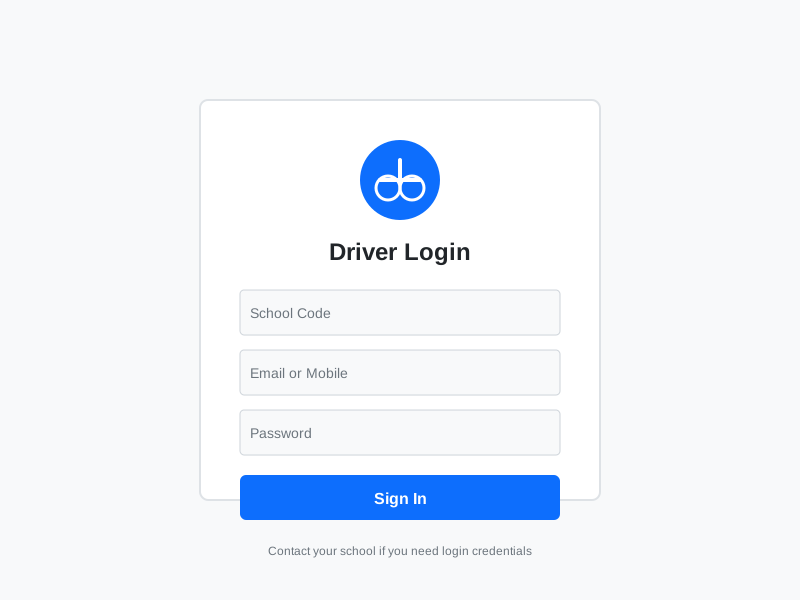
Your account is created by the school administrator. If you don't have login credentials, contact your transportation coordinator or school office.
Your Driver Dashboard
After logging in, you'll see your Driver Dashboard with:
- Today's Trips - Morning and afternoon routes
- Assigned Students - Students on your route
- Live Trip Status - Current trip progress
- Alerts & Notices - Important announcements
- Quick Actions - Start trip, report issue, view schedule

Dashboard Sections:
- Trip Overview: Number of trips today, completed trips, pending trips
- Student Count: Total students assigned to your route
- Attendance Summary: Present, absent, leave status
- Notifications: New messages, route changes, alerts
Managing Daily Trips
Starting a Trip
To begin your route:
- From the dashboard, tap Start Trip on the scheduled trip
- Select trip type:
- Morning Pickup - Going to school
- Afternoon Drop - Returning home
- Review the route and student list
- Tap Start to begin
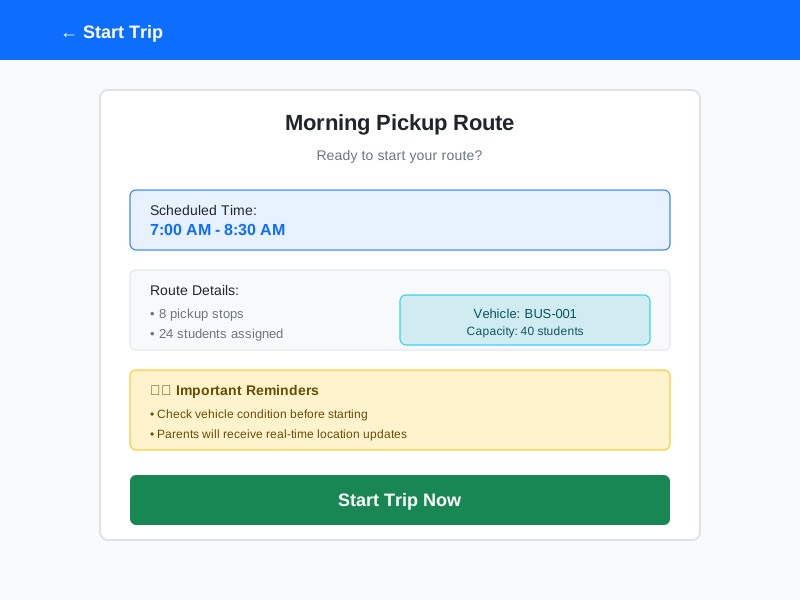
Always start the trip when you begin your route. This allows parents to track the bus in real-time.
Live Trip Tracking
Once a trip is started:
- Your location is shared in real-time with parents and school
- Parents can see estimated arrival time at their stop
- School can monitor trip progress
- You can mark students as picked up/dropped off
Trip Status Indicators:
- 🟢 In Progress - Trip is active
- 🟡 At Stop - Stopped at a pickup/drop point
- 🔴 Delayed - Running behind schedule
- ✅ Completed - Trip finished
Marking Student Attendance
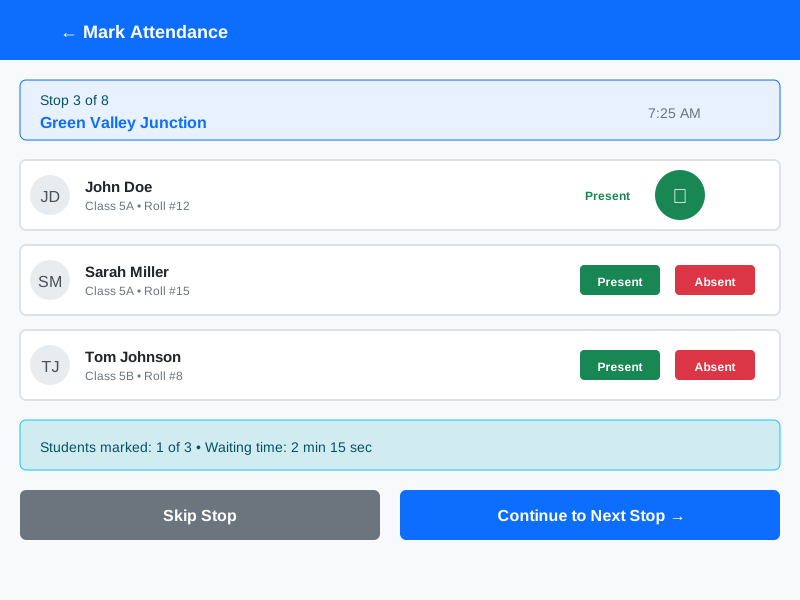
At each stop, you need to mark attendance:
Pickup (Morning Trip):
- Arrive at the pickup point
- Tap the stop on your route
- Mark each student:
- ✅ Present - Student boarded the bus
- ❌ Absent - Student didn't show up
- 🏥 On Leave - Pre-informed leave
- Tap Continue to next stop
Drop-off (Afternoon Trip):
- Arrive at the drop point
- Tap the stop
- Mark each student as Dropped
- Confirm parent/guardian pickup if required
- Tap Continue to next stop
Always confirm student identity before marking them present. Safety is priority!
Viewing Your Route
To see your assigned route:
- Go to Routes from the menu
- You'll see:
- List of all stops in order
- Student names at each stop
- Pickup/drop times
- Stop addresses with map view

Route Information Includes:
- Stop name and address
- Number of students at each stop
- Scheduled pickup/drop time
- Distance to next stop
- Total route distance and estimated time
Ending a Trip
To complete your trip:
- After the last drop-off, tap End Trip
- Confirm all students have been dropped
- Add any notes or incidents (optional)
- Tap Complete
The trip will be marked as completed and logged in the system.
Student Management
Viewing Assigned Students
To see your student list:
- Go to Students from the menu
- You'll see all students assigned to your route
- Filter by:
- Pickup point
- Morning/afternoon route
- Active/inactive status
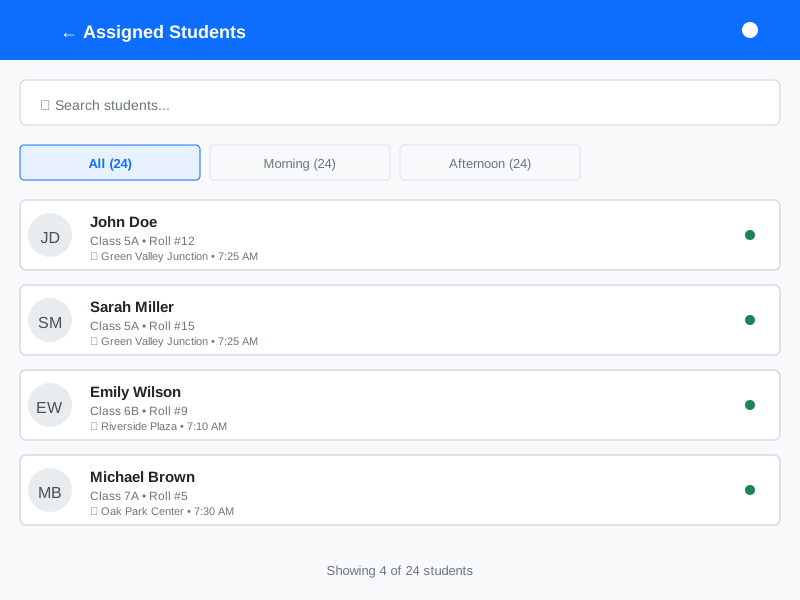
Student Information Available:
- Student name and photo
- Class and section
- Pickup point and time
- Parent contact number (emergency)
- Special instructions (if any)
New Student Alerts
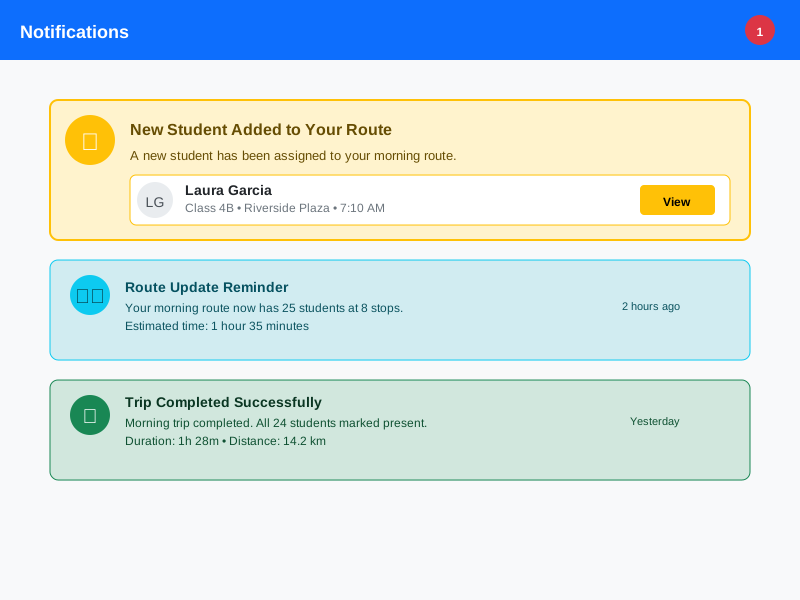
When new students are assigned to your route:
- You'll receive a notification
- New student appears in your list with a NEW badge
- Review their pickup point and details
- Contact coordinator if you have questions
Route Changes
If route or stops change:
- You'll receive notification
- Updated route appears in Routes section
- Review changes before next trip
- Contact coordinator if unclear
Communication
Viewing Announcements
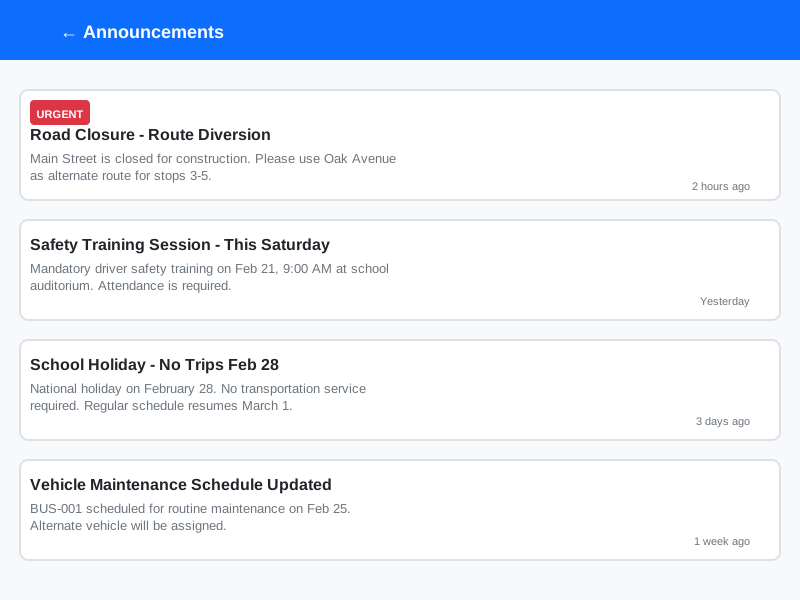
To check school announcements:
- Go to Announcements or tap the bell icon
- See messages from:
- School administration
- Transportation coordinator
- System alerts
Types of Announcements:
- Route changes or updates
- Holiday schedules
- Safety alerts
- Maintenance notices
- Policy updates
Reporting Issues
To report a problem:
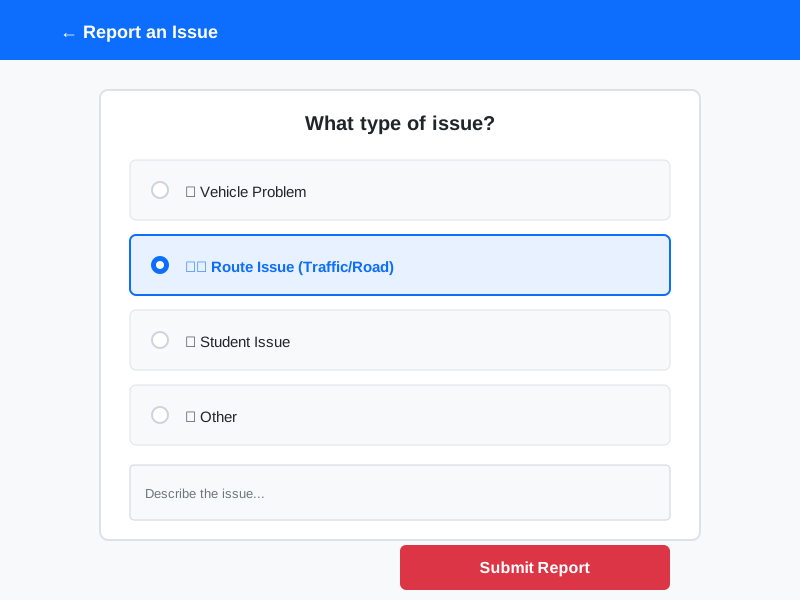
- Tap Report Issue from the menu or dashboard
- Select issue type:
- Vehicle Problem - Mechanical issues
- Route Issue - Road closures, traffic
- Student Issue - Student behavior, emergency
- Other - Any other concern
- Add description and details
- Attach photos if relevant (optional)
- Tap Submit
The issue will be sent to the transportation coordinator and school admin immediately.
For emergencies (accidents, medical issues), call emergency services first, then report through the app.
Contacting Parents
In case you need to contact a parent:
- Go to the student's profile
- Tap Contact Parent
- Choose:
- Call - Direct phone call
- Message - In-app message (if enabled)
When to Contact Parents:
- Student not at pickup point
- Student feeling unwell
- Late arrival notification
- Route delay information
Attendance & Schedules
Viewing Your Schedule
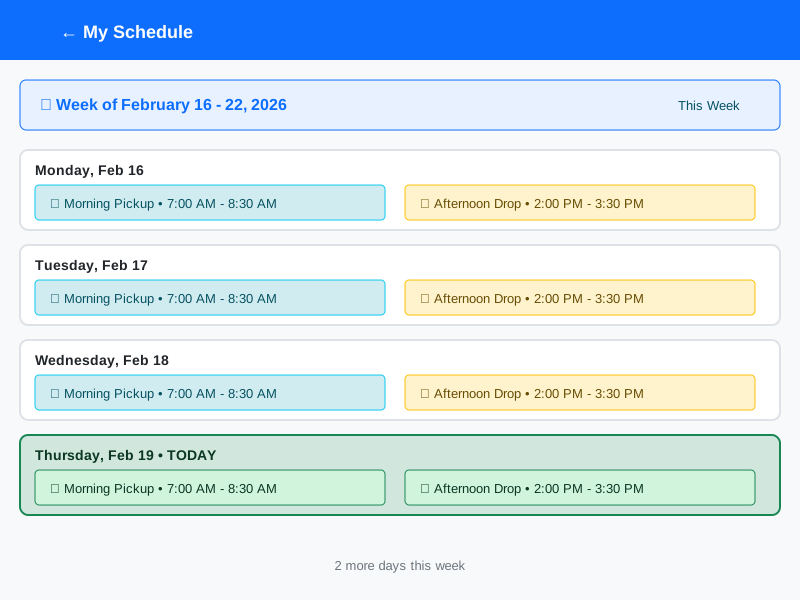
To see your daily/weekly schedule:
- Go to Schedule from the menu
- View:
- Today's trips with times
- Weekly schedule
- Upcoming holidays
- Special event days
Holiday Calendar
To check holidays:
- Go to Holidays from the menu
- See all school holidays and breaks
- No trips scheduled on these days

Your Attendance Record
To view your own attendance:
- Go to My Attendance from the menu
- See your:
- Present days
- Absent days
- Leave days
- Monthly summary
Leave Management
Applying for Leave
To request time off:
- Go to Apply Leave from the menu
- Select:
- Leave type (sick, personal, etc.)
- Start date
- End date
- Reason
- Tap Submit
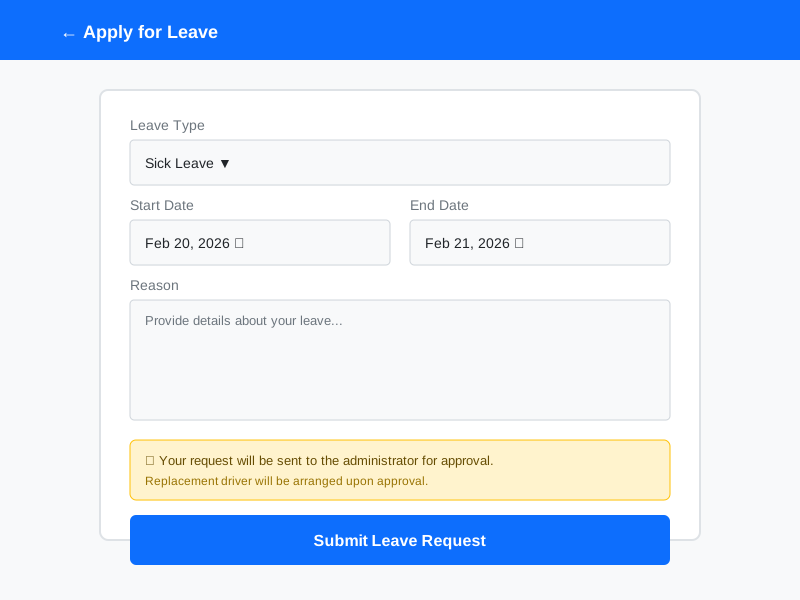
Your leave request will be sent to the administrator for approval.
Checking Leave Status
To see your leave requests:
- Go to My Leaves
- View:
- ✅ Approved - Leave confirmed
- ⏳ Pending - Waiting for approval
- ❌ Rejected - Not approved
- Tap any leave to see details and reason (if rejected)
Trip Reports & History
Viewing Trip History
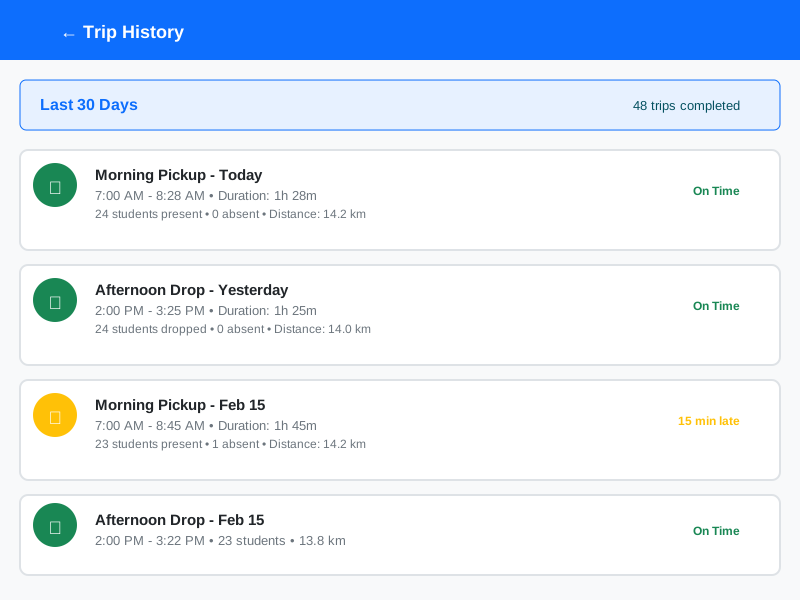
To see past trips:
- Go to Trip History from the menu
- Filter by:
- Date range
- Trip type (pickup/drop)
- Route
- Tap any trip to see:
- Students marked present/absent
- Start and end times
- Total distance traveled
- Any incidents reported
Monthly Reports
View your monthly performance:
- Total trips completed
- Total students transported
- Attendance accuracy
- On-time performance
- Incidents reported
Vehicle Information
Your Assigned Vehicle
To view vehicle details:
- Go to Vehicle Info from the menu
- See:
- Vehicle number/registration
- Vehicle type and capacity
- Insurance details
- Maintenance schedule
Reporting Vehicle Issues
If your vehicle has problems:
- Use Report Issue → Vehicle Problem
- Describe the issue clearly
- Indicate if vehicle is operational
- Coordinator will arrange maintenance/replacement
Settings & Profile
Updating Your Profile
To edit your information:
- Go to Profile from the menu
- Update:
- Contact number
- Emergency contact
- Profile photo
- Address
- Tap Save
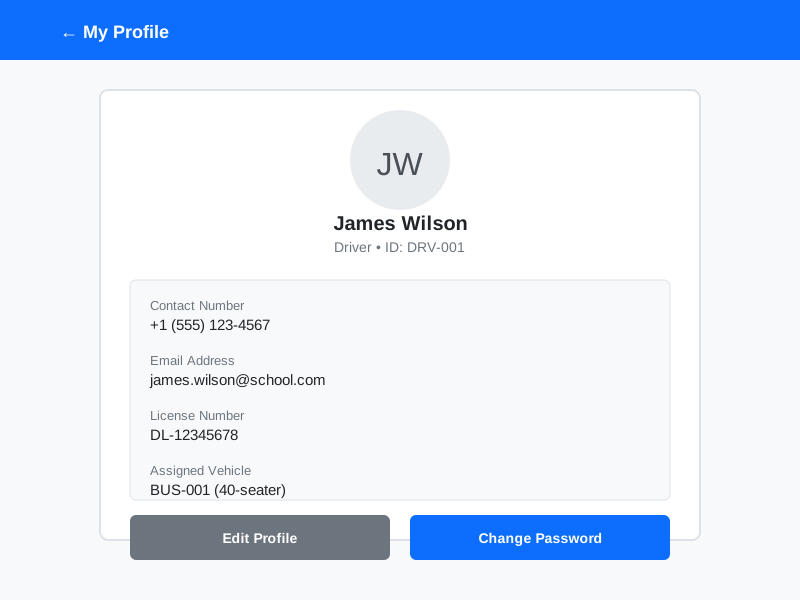
You cannot change your name or license number. Contact the school office if these need updating.
Changing Password
To update your password:
- Go to Settings → Change Password
- Enter current password
- Enter new password
- Confirm new password
- Tap Update
Notification Settings
To manage notifications:
- Go to Settings → Notifications
- Enable/disable:
- Trip reminders
- Route change alerts
- New student notifications
- System announcements
Best Practices
Daily Checklist
✅ Before Starting Your Day:
- Check your schedule and route
- Verify vehicle condition
- Review student list for any new additions
- Check for route changes or announcements
✅ During Trips:
- Start trip in the app when you begin
- Mark attendance accurately at each stop
- Be punctual and follow the schedule
- Report delays or issues immediately
- Maintain student safety at all times
✅ After Completing Trips:
- End trip in the app
- Report any incidents or issues
- Check for next day's schedule
- Ensure all students were safely dropped
Safety Guidelines
🚸 Student Safety:
- Always verify student identity before boarding
- Ensure students are seated before moving
- Check all seats before leaving each stop
- Never leave students unattended
- Use emergency procedures if needed
🚗 Driving Safety:
- Follow all traffic rules
- Maintain safe speed
- Use seat belts and safety equipment
- Avoid phone use while driving (except hands-free)
- Report road hazards or route issues
Attendance Accuracy
✓ Mark attendance correctly:
- Present only if student actually boards
- Absent if student doesn't show up after waiting
- Never mark attendance in advance
- Double-check before confirming each stop
Communication Tips
💬 Professional Communication:
- Be polite and respectful with parents
- Respond to coordinator messages promptly
- Report issues clearly and accurately
- Keep school informed of delays
- Maintain student confidentiality
Troubleshooting
Common Issues
Problem: Can't start a trip
- ✓ Check if you have internet connection
- ✓ Ensure trip is scheduled for today
- ✓ Verify you're assigned to this route
- ✓ Contact coordinator if issue persists
Problem: GPS not working
- ✓ Enable location services in phone settings
- ✓ Grant location permission to the app
- ✓ Restart the app
- ✓ Check if GPS is enabled on your device
Problem: Student not in my list
- ✓ Refresh the student list
- ✓ Check if route was recently changed
- ✓ Contact coordinator to verify assignment
- ✓ Don't board unassigned students without approval
Problem: Can't mark attendance
- ✓ Ensure trip is started
- ✓ Check internet connection
- ✓ Refresh the screen
- ✓ Try again or report to coordinator
Problem: App not loading
- ✓ Check internet connection (WiFi or mobile data)
- ✓ Close and reopen the app
- ✓ Update app to latest version
- ✓ Clear app cache in phone settings
- ✓ Reinstall the app if needed
Getting Help
Need assistance?
- Contact your transportation coordinator first
- Call school office during working hours
- Use the Report Issue feature in the app
- Check announcements for known issues
Emergency Support:
- For urgent issues: Call school emergency number
- For app problems: Contact IT support
- For route issues: Contact coordinator immediately
Quick Reference
Key Features at a Glance
| Feature | Location | Purpose |
|---|---|---|
| Start Trip | Dashboard | Begin your route |
| Mark Attendance | During trip | Record student presence |
| View Route | Routes menu | See stops and students |
| Report Issue | Dashboard/Menu | Alert coordinator |
| Check Schedule | Schedule menu | View daily/weekly trips |
| Apply Leave | Leave menu | Request time off |
| View Students | Students menu | See assigned students |
| Trip History | Reports menu | Review past trips |
Common Actions
Quick Daily Tasks:
- ✓ Check schedule for today
- ✓ Review route and stops
- ✓ Start morning trip
- ✓ Mark student attendance at each stop
- ✓ Complete trip
- ✓ Report any issues
- ✓ Start afternoon trip
- ✓ Mark student attendance
- ✓ Complete trip
- ✓ Check for tomorrow's schedule
FAQs
Q: What if a student is not at the pickup point? A: Wait for the scheduled time (usually 2-3 minutes). If student doesn't appear, mark them as absent and continue. The parent will be notified.
Q: Can I change my route? A: No, routes are assigned by the coordinator. If you need a route change, contact your coordinator.
Q: What if I'm running late? A: Report the delay immediately using "Report Issue" so parents and school can be notified.
Q: Do I need internet during the trip? A: Yes, internet is needed for live tracking and attendance marking. Ensure you have mobile data.
Q: What if the app crashes during a trip? A: Reopen the app and continue marking attendance. The trip will resume from where it was. If it doesn't, contact the coordinator.
Q: Can parents see my phone number? A: Only if the school administrator enables it. Otherwise, they can only message through the app.
Q: How do I know if there's a route change? A: You'll receive a notification and the route will be updated in the Routes section. Always check before starting trips.
Q: What if I need emergency leave? A: Call the school immediately, then apply for leave in the app. The coordinator will arrange a replacement driver.
Need Help?
Contact Information:
- Transportation Coordinator: [Contact via school]
- School Office: [Contact via school]
- Technical Support: [Contact via school]
App Version: Check in Settings → About
Last Updated: February 2026
Your role is crucial for student safety and punctuality. Keep the app updated, follow schedules, and communicate any issues promptly. Thank you for your service! 🚌